I Tried 5 Ways to Get a PDF Estimate Into Xactimate. Here's What Actually Worked.
Article Image
Why I Ran This Test
I manage production for a mid-size restoration company in central Pennsylvania. We do about 35-40 insurance claims a month. Fire, water, wind, the usual. And every single one of those claims involves at least one PDF estimate that needs to end up in Xactimate.
Sometimes it's the carrier's initial scope. Sometimes it's a competitor's bid the homeowner wants us to match. Sometimes it's a public adjuster's supplement. Doesn't matter where it comes from. If it arrives as a PDF, somebody on my team has to re-type it into Xact before we can do anything useful with it.
Last quarter, I got tired of hearing my estimators complain about it. So I decided to actually test every method I could find. Same estimate. Same conditions. Real timing.
I picked a recent water loss claim, a two-story colonial with finished basement, extensive water damage from a burst supply line. The carrier's estimate was 285 line items across 11 rooms. Complex enough to be a real test, but not so massive that any single method would take all day.
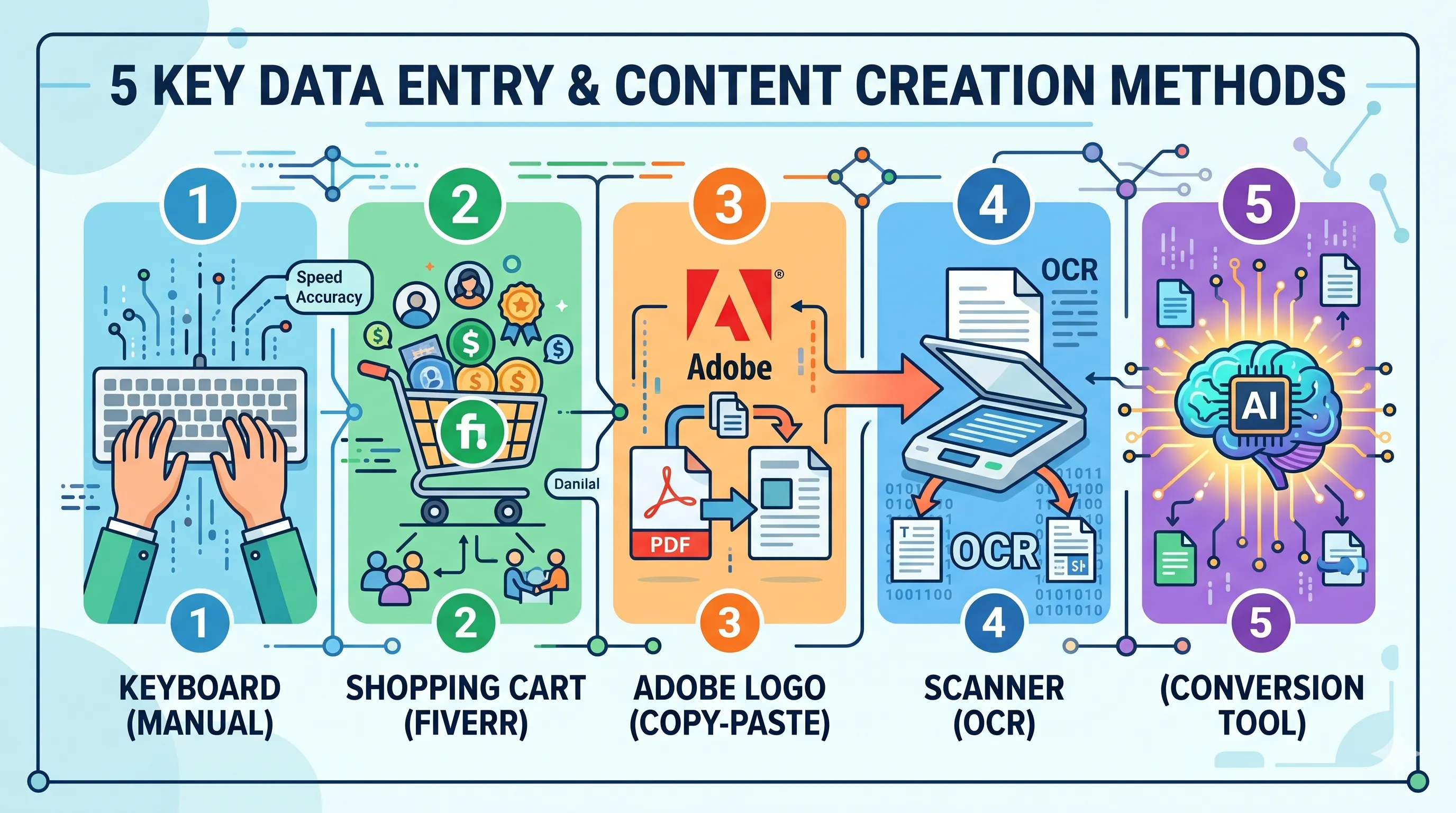
Then I tried five different approaches to get it into Xactimate.
Method 1: Manual Re-Entry (The Baseline)
I handed the PDF to Luis, my senior estimator. He's been writing Xactimate estimates for 11 years. If anyone can re-type fast, it's him.
He sat down at 8:15 AM. PDF on the left monitor, Xactimate on the right. Started in the basement and worked his way up.
He finished at 11:02 AM. Two hours and 47 minutes. And he took one bathroom break and refilled his coffee once, so call it 2 hours 35 minutes of actual keyboarding.
I asked him how confident he was in the accuracy. He said maybe 97%. "I definitely fat-fingered a few quantities, and there were two or three line items where I wasn't sure I picked the right code variant." He went through it again to check, which took another 25 minutes.
Total time: 3 hours. Not including the mental fatigue that made him basically useless for detail work the rest of the morning.
Luis has been doing this since before I started. He's fast. Our junior estimator, Amanda, would have taken 4+ hours on the same estimate. And she would've made more errors.
Method 2: Fiverr Freelancer
I found three Fiverr sellers advertising "PDF to Xactimate" conversion. Prices ranged from $25 to $85 for an estimate this size. I went with the mid-price option, a seller with 4.8 stars and 200+ reviews. Paid $55.
Uploaded the PDF on Monday at 2 PM. Got the ESX back Wednesday morning. That's about 42 hours of turnaround.
When I imported the ESX, the structure looked good at first glance. Rooms were there, line items were populated. But when Luis reviewed it line by line, he found 31 errors. Some were wrong category codes. A few had transposed quantities (reading 84 instead of 48, that kind of thing). Two line items were completely missing. One room had items from a different room dumped into it.
Luis spent 45 minutes fixing everything.
Total time: 42 hours turnaround + 45 minutes of fixes. Cost: $55.
The turnaround killed us. This was a time-sensitive supplement response, and waiting two days wasn't an option. I ended up having Luis re-type it manually anyway on Monday afternoon while we waited for Fiverr. So we paid $55 for a backup copy we didn't end up using.
To be fair, some Fiverr sellers probably do better work than this. And some offer rush delivery. But the inconsistency is the problem. You don't know what you're getting until you've already waited.
Method 3: Adobe Acrobat Export + Copy-Paste
Somebody on a Facebook group swore by this method, so I tested it. The idea is to export the PDF to Excel using Adobe Acrobat Pro, then copy the data and paste it into Xactimate.
It didn't work. At all.
The export to Excel looked promising for about 10 seconds. The line items showed up as rows, and the quantities were in columns. But the formatting was a disaster. Xactimate PDFs use merged cells and nested tables that Adobe's converter can't handle cleanly. Room headers got mixed in with line item descriptions. Codes were split across multiple cells. Quantities ended up in description columns.
And even if the Excel file had been clean, you can't paste from Excel into Xactimate. Xactimate doesn't have a paste function for line items. There's no clipboard import. No CSV import. You'd still need to type everything manually from the spreadsheet instead of from the PDF. Same grind, different source document.
I spent about 30 minutes trying to make this work before giving up.
Total time: 30 minutes wasted. This method is a dead end. I don't care what that Facebook group says.
Method 4: General OCR Software (ABBYY FineReader)
I thought maybe a professional OCR tool could extract structured data from the PDF that I could then work with. ABBYY FineReader is the one people always recommend.
It did a decent job of recognizing the text. The raw extraction was about 98% accurate character-by-character. But it produced a wall of unstructured text. It couldn't distinguish between a line item code and a room header. It didn't understand that "DRY 1/2" followed by "847 SF" on the next line means "847 square feet of half-inch drywall."
OCR gives you characters. What you need is understanding. Those are two very different things.
I tried copying the OCR output and using it as a reference while typing into Xactimate. It was marginally faster than reading from the PDF directly because the text was searchable and I could Ctrl+F for specific items. But I was still typing everything manually.
Total time: 20 minutes of OCR setup + still had to do full manual re-entry. Net time savings: maybe 10 minutes. Not worth the ABBYY license fee.
Method 5: PDF-to-ESX Conversion Tool (ProjectEstimatePro)
Last test. I'd been hearing about these AI-powered conversion tools and figured it was time to actually try one.
I uploaded the same 285-line PDF to ProjectEstimatePro. Drag and drop. The upload took about 15 seconds. Then I waited while it processed.
The progress indicator said it was extracting line items, matching Xactimate codes, building room groupings. After about 14 minutes, it was done. A review screen showed me all 11 rooms with their line items. Each one had the extracted Xactimate code, quantity, unit, and description.
I went through the review screen room by room. Most items looked right. I caught 11 items where the code wasn't quite right. A few were close, like it picked the standard drywall code instead of the water-resistant variant. A couple were generic matches where the PDF description was too vague for exact code mapping. The tool flagged several of these as uncertain, which made them easy to find.
Fixed those 11 items in about 12 minutes. Downloaded the ESX. Imported into Xactimate. Everything landed in the right rooms with the right quantities.
Total time: 14 minutes processing + 12 minutes review = 26 minutes. Cost: most of it fell within the free tier (65 free line items), plus $0.10 per additional line item for the rest.
I had Luis compare the final Xactimate project against the original PDF. He found two minor discrepancies I missed during review, both in the unit cost column where the conversion tool used our current price list month instead of the older one in the original estimate. Not a code error. Just a pricing period difference. Easy fix.
The Results Side by Side
| Method | Total Time | Accuracy | Cost | Would I Use Again? |
|---|---|---|---|---|
| Manual re-entry | 3 hours | ~97% | $0 (but labor cost) | Only if nothing else works |
| Fiverr freelancer | 42 hrs turnaround + 45 min fixes | ~89% | $55 | Not for time-sensitive work |
| Adobe export + copy-paste | 30 min (wasted) | N/A - didn't work | $0 | Never |
| OCR software (ABBYY) | Same as manual, with extra steps | ~98% character accuracy, 0% structured | $150+ license | No |
| PDF-to-ESX converter | 26 minutes | ~96% | Under $25 | Yes, every time |
The conversion tool wasn't even close. It destroyed every other method on speed. And the accuracy was higher than manual re-entry, which surprised me. Turns out a tired human staring at two monitors for 3 hours makes more errors than they think.
What I Changed After This Test
We switched our entire team over the following Monday. New standard operating procedure. Every PDF estimate that comes in goes through the conversion tool first. Review the output. Fix any flagged items. Import the ESX.
Our estimators went from dreading PDF estimates to not even thinking about them. It's just part of the intake process now, like scanning a loss photo or creating a project folder.
The time savings compound fast. At 35-40 claims per month, even if only half involve a PDF that needs conversion, that's 17-20 estimates. At 2.5 hours saved per estimate versus manual re-entry, that's 42-50 hours per month. Luis told me last week that he actually got home before 6 PM every day, which apparently hasn't happened since he started in restoration.
A Few Things Worth Mentioning
Not every PDF converts equally well. The carrier estimates that were originally created in Xactimate convert beautifully because the format is predictable and the line item codes are right there in the text. Contractor estimates from other software, or hand-typed bids from guys who still use Word templates, are messier. The tool still handles them, but you'll spend more time on review.
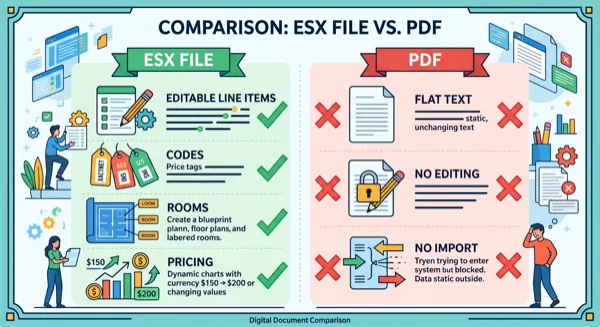
Also, sketches don't come through. The conversion gives you line items, rooms, quantities, and notes. If you need the floor plan, you're still drawing it in Sketch. Nobody's solved that one yet, at least not in a way I'd trust for an actual submission.
And one more thing. The first time you try this, don't just blindly import the ESX and send it to the carrier. Go through the review step. Check the codes. Check the quantities. Check that rooms are grouped correctly. After your third or fourth conversion, you'll get a feel for where the tool is strong and where it tends to struggle, and your review time will drop from 15 minutes to 5.
My Recommendation
If you're reading this because you just searched "how to import PDF into Xactimate" and you're sitting there with a PDF on one screen and an empty Xactimate project on the other, here's what I'd do.
First, email whoever sent you the PDF and ask for the ESX. That's free and instant if they have it.
If they don't have it or won't send it, upload the PDF to a conversion tool. Don't waste 3 hours of your life re-typing something that a tool can extract in 15 minutes. I know the old-school guys think manual entry is the only trustworthy method. I was one of those guys three months ago. I was wrong.
The tools aren't perfect. But 96% accuracy with a 15-minute review is better than 97% accuracy after 3 hours of eye-glazing data entry. And your afternoon is worth more than that extra 1%.
If you hit a wall or have a question about any of this, ProjectEstimatePro's support team is at support@projectestimatepro.com. They've been helpful the few times I've reached out.
Written by
Derek Palumbo
Project Manager, Keystone Restoration Group
Frequently Asked Questions
Based on my testing, a dedicated PDF-to-ESX conversion tool is the best option by a wide margin. It converted a 285-line estimate in 26 minutes total, including review, compared to 3 hours for manual re-entry. Accuracy was about 96%. Fiverr, OCR, and copy-paste methods all had significant drawbacks. You can try ProjectEstimatePro for free, and if you need help, their support team is at support@projectestimatepro.com.
No. Xactimate has no clipboard import or paste function for line items. Even if you export the PDF to Excel and get clean tabular data, you can't paste it into Xactimate. You'd still need to type each line item manually. I tested this specifically and it's a dead end.
It depends on the size. A 50-line residential estimate takes 30-45 minutes for an experienced estimator. A 285-line estimate took our senior guy almost 3 hours. Large commercial losses with 400+ lines can take 4-6 hours. And that doesn't count the time spent fixing errors afterward.
Depends on the service. Fiverr freelancers are cheap but slow (1-3 day turnaround) and inconsistent on accuracy. AI-powered conversion tools like ProjectEstimatePro are fast (under 30 minutes) and more accurate in my experience. For any team doing more than a few conversions a month, a conversion tool pays for itself immediately in saved labor hours.
Not really. OCR tools like ABBYY FineReader can extract text from PDFs accurately, but they produce unstructured output. They don't understand Xactimate codes, room groupings, or the relationship between line items and quantities. You still end up re-typing everything manually from the OCR output instead of from the PDF. Not worth it.
Convert Your PDF Estimates to Xactimate
Upload a PDF and get an editable ESX file in minutes. No manual data entry required.
Try Free ConversionPractical next steps