How to convert a PDF estimate to an Xactimate ESX file
Article Image
Can you turn a PDF estimate into an ESX file?
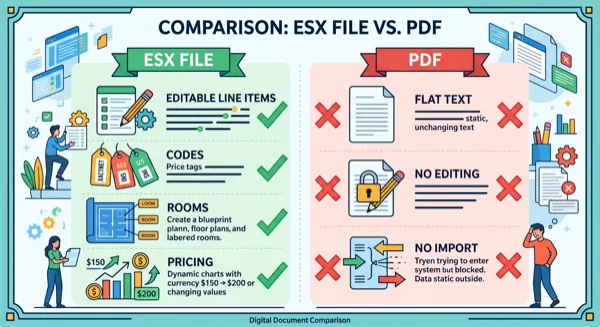
Yes. ProjectEstimatePro extracts estimate data from a PDF, lets you review it, and generates an ESX file for Xactimate. Changing the filename from .pdf to .esx will not work: the estimate data needs to be reconstructed into the export format.
If the sender can provide the original ESX, ask for it first. A PDF conversion is useful when you only have the report. It cannot recover information that was never included in that report.
Start with the right source
Use the complete PDF estimate rather than a screenshot or a few selected pages. Check that the room names, descriptions, quantities, units, and amounts are readable. A missing page may mean a missing room or line item.
Keep an unchanged copy of the source PDF so you can compare it with the converted result. If you have several revisions, choose the one you actually need before uploading.
Convert and review in ProjectEstimatePro
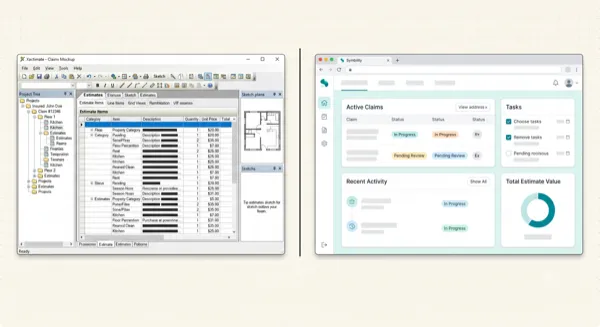
- 1Open the upload page and choose the source format: Xactimate or Symbility.
- 2Upload the PDF and follow its processing status.
- 3Open the review page. Compare rooms and line items with the source, and correct extracted details where needed.
- 4Check the export options and displayed cost. Review an optional sketch separately if you request one.
- 5Generate and download the ESX file. Keep the PDF available for the import check.
A small review example
This is an illustrative calculation, not a customer result or a conversion benchmark. Suppose a source line has a quantity of 120 SF and a unit price of $2.50. Before tax or other adjustments, the amount is $300.
If the extracted quantity is 12 instead of 120, the amount becomes $30. The description may still look right. That is why checking a filename or a room count is not enough: compare quantities, units, and amounts too.
Start with the largest amounts and repeated items. Then work through each room. A matching grand total is useful, but it does not prove that every line item is correct.
Import the exported file
Use the import workflow for your Xactimate version. Verisk publishes desktop ESX import instructions, linked below. Menu labels and import options can differ between desktop and online, so use the instructions for the product you have.
After import, compare room groupings, quantities, codes, and totals with the PDF. Check any sketch against the source drawing. Save the reviewed project before making additional changes.
What if something does not match?
Missing room or item: check that all source pages were uploaded and that the text is readable. Review the extraction before generating another file.
Different amount: compare quantity, unit, unit price, and any tax, depreciation, or other adjustments. Record whether the difference first appears in the review screen or after import.
Uncertain line-item code: read the description and confirm the intended work. Similar wording does not necessarily mean identical scope.
Sketch discrepancy: compare dimensions, openings, and room assignments with the source plan. A generated sketch needs its own review.
If you need help, contact support with the processing stage and error message. Do not post customer claim documents in a public forum.
Check pricing before export
The base conversion has a free tier for estimates with up to 65 line items. Larger files and optional features may incur charges. Use the pricing page and the amount shown in the application to check your selected options before paying.
This guide describes the workflow; it does not promise a particular conversion time or accuracy rate.
Written by
ProjectEstimatePro
Product documentation
Frequently Asked Questions
No. Renaming the file does not reconstruct the estimate data. Use the original ESX if available, or convert and review the PDF.
Yes. Compare rooms, descriptions, quantities, units, codes, and totals with the source PDF. Review any generated sketch separately.
No. The arithmetic example is illustrative. It explains a review check and is not a conversion benchmark.
Convert Your PDF Estimates to Xactimate
Upload a PDF and get an editable ESX file in minutes. No manual data entry required.
Try Free ConversionPractical next steps