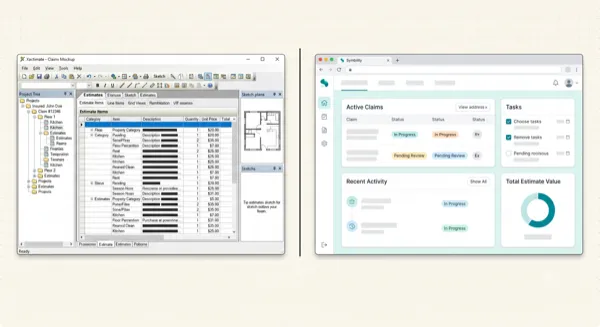
How to Import a PDF Into Xactimate (Spoiler: You Can't. But Here's What Works Instead.)
Article Image
The Question I Get Every Single Training Class
I teach Xactimate to new adjusters. Two-day bootcamp, covers everything from Sketch to pricing to scoping water losses. And without fail, within the first 90 minutes, somebody raises their hand.
"Can I just import a PDF into Xactimate?"
It's a reasonable question. Every other piece of software on earth can import a PDF. Acrobat, Google Docs, even my bank's app reads PDF statements. So when a new adjuster gets handed a 35-page carrier estimate as a PDF attachment and they need it inside Xactimate, their brain goes to the obvious place: File > Import.
I always pause before answering. Because the honest answer is kind of depressing.
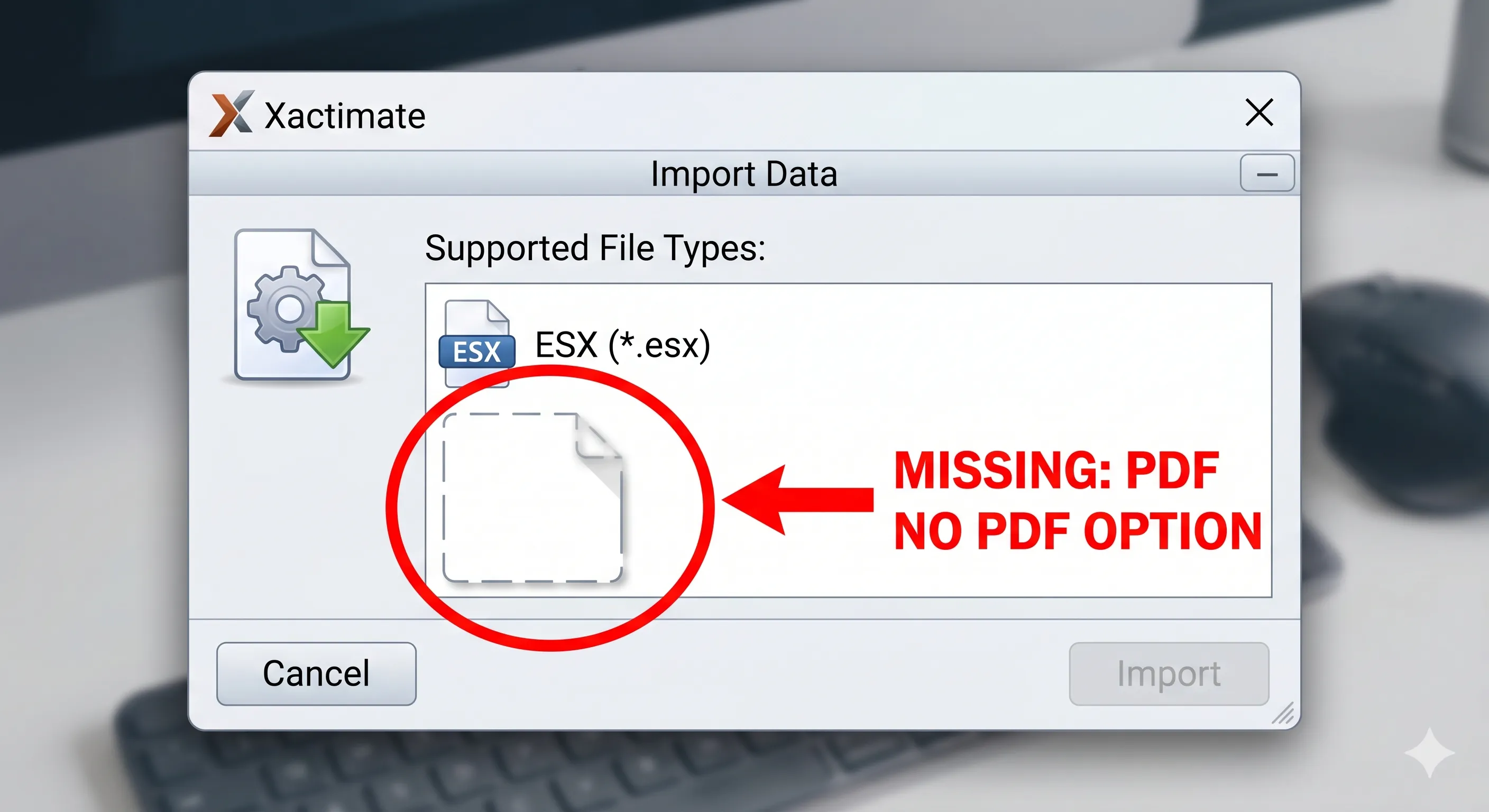
No. You can't. Xactimate does not import PDFs. There is no menu option. There is no hidden setting. There is no plugin. It simply does not do it.
And then I watch the color drain from their faces.
Why Xactimate Refuses to Import PDFs
I could give you the technical explanation about structured data versus flat document formats. But the real reason is simpler than that.
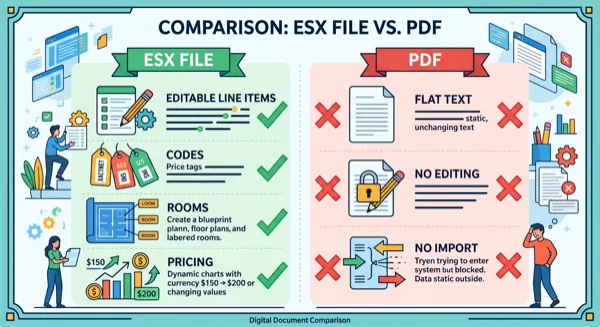
Verisk makes money by keeping you inside the Xactimate ecosystem. The ESX file format, Xactimate's proprietary format, is the only way to move estimates in and out of the software. They control that format completely. No public documentation. No open spec. No third-party SDK.
If Xactimate could magically import any PDF, you wouldn't need to manually re-enter data. You wouldn't need XactAnalysis as badly. The lock-in would weaken. And Verisk is a publicly traded company that made over $3 billion in revenue last year. They are not interested in weakening their lock-in.
So the PDF sits on one monitor. Xactimate sits on the other. And you type.
I've been watching adjusters do this for 16 years. New ones always think they're missing something, that there must be a way. There isn't. At least, not built into Xactimate.
What Xactimate Actually Imports
Before I get to the workarounds, let me clarify what Xactimate CAN bring in. Because there are legitimate import options, they just don't include PDF.
ESX files. This is it. The big one. If someone sends you an ESX file, you can import it directly. Open Xactimate, go to your Projects list, click Tools in the left panel, select Import, point to the folder with your ESX, click SELECT DATA, pick the file, hit IMPORT. Done. The estimate lands in your project tree with everything intact, rooms, line items, notes, quantities.
XactAnalysis assignments. If your carrier uses XactAnalysis (most do), claims get pushed to your queue automatically. You don't import anything manually. It just shows up.
Sketch files (.skx). Floor plans and roof diagrams can be imported separately. Useful when someone draws the sketch but doesn't do the line items.
That's the list. No PDF. No CSV. No Excel. No Word doc. Nothing else.
The Workarounds People Actually Use
Over 16 years, I've seen adjusters and contractors get creative. Some of these methods are painful. Some are expensive. A couple actually work pretty well. Here's the full rundown.
Method 1: The Two-Monitor Grind (Free, Painful)
This is what most people default to. PDF on the left, Xactimate on the right. Read a line, find the matching code, type the quantity. Repeat until your eyes cross.
On a small residential estimate with maybe 40-50 line items, this takes 30-45 minutes. Not the end of the world.
On a commercial loss with 300+ line items? You're looking at 3-4 hours. I've seen people blocked out entire afternoons for a single re-entry job. My record was a hotel renovation estimate that took me almost 6 hours. I missed my daughter's soccer game. That was the day I started looking for a better way.
When it makes sense: Small estimates under 50 lines, or when you need it done this second and have no other option.
Method 2: Ask for the ESX Instead of the PDF
This sounds obvious, but I'm shocked how many people skip it. If the estimate was written in Xactimate, the person who wrote it has the ESX. They can export it and send it to you in about 30 seconds.
The problem is that a lot of carriers and adjusters send PDFs by default. They print to PDF and email it. They don't even think about ESX because that's not how their workflow works. But if you ask, most will send it.
I tell my students: before you spend two hours re-typing a PDF, send a one-line email. "Hey, can you export the ESX for this estimate? It'll save me a couple hours on my end." You'd be surprised how often that works.
When it makes sense: Always try this first. It costs you nothing but a 15-second email. The catch is that not every estimate was written in Xactimate, and some people won't bother responding.
Method 3: Outsource to Fiverr or a Conversion Service
There's a whole cottage industry of people on Fiverr who will take your PDF and send back an ESX. Prices range from $15 for a small residential estimate to $300+ for large commercial ones.
I tried this for a while. Results varied a lot. Some freelancers clearly just re-typed the whole thing into their own Xactimate license, which means you're paying someone to do the same manual grind you'd do yourself. Others used some kind of conversion tool, and the output was faster but sometimes had code matching errors.
The real killer is turnaround time. Most Fiverr sellers take 24-72 hours. When you've got a carrier breathing down your neck for a supplement response by end of day, that doesn't work.
When it makes sense: One-off large estimates where you have a few days and don't want to spend 4 hours re-typing. Not a great solution for ongoing high-volume work.
Method 4: PDF-to-ESX Conversion Tools
This is the category that's actually changed things in the last year or so. Tools like ProjectEstimatePro that take a PDF, run it through AI-powered extraction, and output an ESX file you can import directly.
The process is dead simple. Upload the PDF. Wait while it extracts line items, quantities, codes, and room groupings. Review the output to catch anything the AI got wrong. Download the ESX. Import it into Xactimate using the normal import process.
I started recommending these in my training classes about six months ago. At first I was cautious because accuracy wasn't perfect. But on clean Xactimate-generated PDFs, I'm seeing 93-96% code matching accuracy. On a 200-line estimate, that means maybe 8-12 items need a quick manual fix. Twenty minutes of review versus two hours of re-typing.
The free tier at ProjectEstimatePro covers 65 line items per file, which handles most residential claims. Beyond that it's $0.10 per line item, which is still way cheaper than Fiverr or your own time. If you have questions about pricing or need help with a tricky file, their support team is responsive: support@projectestimatepro.com.
When it makes sense: This is my go-to recommendation for anyone dealing with PDF estimates regularly. The math just works.
Step-by-Step: Getting a PDF Estimate Into Xactimate Today
Since this is the thing everyone's actually searching for, let me lay it out start to finish.
Step 1. Check the PDF. Open it and try to select text. Click on a line item description and see if you can highlight it. If yes, the text is digital and conversion tools will handle it well. If you can't select text, it's a scanned image, and accuracy will drop. In that case, try to get a cleaner copy.
Step 2. Try asking for the ESX first. Fire off an email to whoever sent you the PDF. If they wrote it in Xactimate, getting the ESX takes 30 seconds on their end.
Step 3. If you can't get the ESX, upload the PDF to a conversion tool. Go to ProjectEstimatePro, drag and drop the file. Let it process.
Step 4. Review the extracted data. The tool will show you rooms, line items, quantities, and codes. Scan through it. Look for line items flagged as uncertain. Fix any codes that got mapped to the wrong Xactimate category.
Step 5. Download the ESX file. Save it somewhere you can find it. I use a folder called "Converted ESX" on my desktop so they don't get mixed up with manually-created exports.
Step 6. Import into Xactimate. Open your project, go to Tools > Import, point to the folder, select the file, hit IMPORT. Your estimate appears in the project tree.
Step 7. Spot-check the import. Open a few rooms, verify quantities look right, make sure the pricing matches your active price list period. If the original estimate used a different region's pricing, you'll need to adjust.
Common Mistakes I See During Import
After watching hundreds of people go through this process, a few things trip people up consistently.
Importing into the wrong project. Xactimate doesn't always make it obvious which project you're importing into. Make sure you've selected or created the correct project before you hit Import. I've seen people accidentally dump an estimate into the wrong claim file and not notice for days.
Version mismatch. If your Xactimate is out of date and the ESX was created on a newer version, the import might fail silently or throw a cryptic error. Keep your Xactimate updated. I know the updates are annoying, but they prevent this exact problem.
Price list confusion. The ESX was built using whatever price list the original estimator had active. Your Xactimate might have a different region or a different month loaded. The line items will import fine, but the dollar amounts might not match. This isn't an error. It's just how regional pricing works. Make sure you know which price list you need before you start comparing numbers.
Never import a converted ESX and submit it to a carrier without reviewing it first. Even at 95% accuracy, that remaining 5% can include wrong codes or transposed quantities. Always scan through it.
Skipping the review step. I cannot stress this enough. Never import a converted ESX and submit it to a carrier without reviewing it first. Even at 95% accuracy, that remaining 5% can include wrong category codes, transposed quantities, or mismatched units. It takes 15-20 minutes to scan through. Do it every time.
Will Xactimate Ever Add PDF Import?
People ask me this a lot. My honest answer: probably not anytime soon.
Verisk has had decades to build this feature. It's not a technical limitation. They process millions of estimates. They have the engineering talent. They choose not to build it because the proprietary format is part of their moat.
Could competitive pressure change that? Maybe. If enough adjusters and contractors adopt third-party conversion tools, Verisk might eventually feel pressure to offer native PDF import. But I wouldn't hold my breath. They're more likely to tighten restrictions on the ESX format than to open it up.
In the meantime, the workarounds I described above are what we've got. And honestly, they're getting good enough that the lack of native PDF import is becoming less of a blocker than it used to be. Two years ago, the only option was manual re-entry. Now there are real alternatives. That's progress.
The Bottom Line
If you Googled "how to import PDF into Xactimate" hoping to find a menu option you missed, I'm sorry. It doesn't exist. Verisk built the moat and they're not draining it.
But the workaround is this: convert the PDF to an ESX file first, then import the ESX. You can do this manually (painful), outsource it (slow and inconsistent), or use a conversion tool (fast and getting better all the time).
For my training students, I tell them the same thing every class. Learn the import process. Learn where the Tools panel is. And accept that PDF-to-ESX conversion is just part of the job now, like learning Sketch or understanding O&P. The adjusters who figure out an efficient workflow for this will process more claims, turn supplements faster, and spend less time staring at two monitors wishing Xactimate had a feature it will never have.
Written by
Janet Okoro
Xactimate Trainer & Former Staff Adjuster, 16 Years
Frequently Asked Questions
No. Xactimate only imports ESX files, its own proprietary format. There's no built-in PDF import feature, no plugin, and no setting to enable it. You need to convert the PDF to ESX first, either manually by re-typing it or by using a conversion tool.
First, try asking the sender for the ESX file directly. If that's not possible, use a PDF-to-ESX conversion tool like ProjectEstimatePro. Upload the PDF, review the extracted data, download the ESX, and import it. Total time is usually 15-25 minutes versus 2-4 hours of manual re-entry. Questions about pricing or features? Email support@projectestimatepro.com.
Verisk controls the proprietary ESX format as part of their business strategy. Keeping data locked in their ecosystem reinforces the value of Xactimate and XactAnalysis. They have no financial incentive to make it easy to bring data in from outside sources.
On clean, Xactimate-generated PDFs with selectable text, accuracy runs about 93-96%. That means on a 200-line estimate, you might need to manually fix 8-12 line items. Scanned or low-quality PDFs will have lower accuracy. Always review the output before submitting to a carrier. If you run into issues with a specific file, reach out to support@projectestimatepro.com.
PDFs that were originally generated from Xactimate convert the best because the formatting and line item codes are consistent and predictable. Symbility PDF conversion support is coming soon. Handwritten estimates, scanned faxes, or heavily compressed files are much harder and less accurate.
Convert Your PDF Estimates to Xactimate
Upload a PDF and get an editable ESX file in minutes. No manual data entry required.
Try Free ConversionPractical next steps