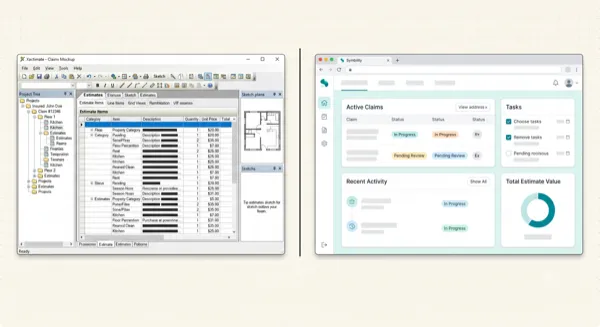
How to review a Symbility PDF converted to Xactimate ESX
Article Image
Can a Symbility PDF be converted to Xactimate ESX?
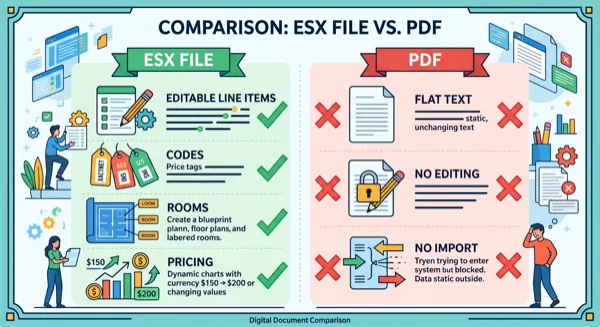
ProjectEstimatePro accepts Symbility PDF estimates and can export the reviewed estimate as an ESX file. This workflow starts with the PDF report; it is not a direct transfer of a native Symbility project.
The useful question is not just whether the file opens. You also need to check whether each imported line represents the work described in the source estimate.
Before you upload
Choose the complete estimate revision you want to work from. Keep the original PDF unchanged. Make sure the descriptions, units, quantities, and prices are readable, including pages with room subtotals and summary adjustments.
You do not need to run Symbility to upload an existing PDF. You will need access to Xactimate to open and work with the exported ESX.
The conversion workflow
- 1On the upload page, choose Symbility as the source format.
- 2Upload the PDF and wait for extraction to finish.
- 3Review the rooms and line items against the original report.
- 4Correct extracted details where needed and review the selected export options.
- 5Generate the ESX, import it into Xactimate, and compare the result with the source.
The converter page below links to the upload workflow. For importing the finished file, use Verisk's documentation for your Xactimate version.
Review scope before accepting a code
A similar description is a starting point, not proof of an exact match. Check the action being priced: removal, replacement, cleaning, painting, or another task. Confirm the material and whether preparation or disposal is included.
For example, a line describing removal should not silently become a replacement item. This is a review example, not a claim about how a particular file was converted.
Check units and quantities together
A number without its unit is not enough to validate an item. Compare square feet, linear feet, each, and other units directly with the PDF. Look closely at bundled or lump-sum work, where one source line may describe several activities.
Keep room assignments in the check too. A correct quantity attached to the wrong room can make the imported estimate difficult to review or revise.
Treat price differences as something to explain
Compare the extracted unit price and amount with the source report first. Then compare the imported values in Xactimate. This helps identify where a difference entered the workflow.
Do not assume that converting the file means every price has been updated to a current local Xactimate price list. Confirm the pricing basis in your destination project before changing values. Check tax and other adjustments separately from the base line-item amount.
Review sketches separately
An optional sketch is a separate part of the workflow. Check room dimensions, boundaries, openings, and floor assignments against the source plan. If the PDF lacks those details, conversion alone cannot confirm them.
Keep a record of corrections
Save the source PDF, exported ESX, and a note of corrections made during review. That gives you a reference when you revisit the estimate or discuss a difference with another person.
If the import fails, record the Xactimate version and exact error. If extraction appears incomplete, record the affected page or room. These details give support a more useful starting point than a general report that the conversion did not work.
Written by
ProjectEstimatePro
Product documentation
Frequently Asked Questions
No. This workflow extracts information from a PDF report. It does not transfer a native Symbility project.
Do not assume that it will. Compare source and imported values, then confirm the pricing basis in Xactimate before making changes.
Check the work description, action, material, unit, quantity, price, and room assignment. Similar descriptions may cover different work.
Convert Your PDF Estimates to Xactimate
Upload a PDF and get an editable ESX file in minutes. No manual data entry required.
Try Free ConversionPractical next steps