How I Share Xactimate Estimates With People Who Don't Have Xactimate (ESX to PDF)
Article Image
The Email That Made Me Feel Stupid
Mrs. Delgado called me on a Tuesday afternoon. Sweet woman, mid-60s, had a kitchen fire that scorched the cabinets and buckled the flooring. I'd just finished her estimate in Xactimate. 187 line items. Solid scope. I was proud of the work.
So I exported the ESX file and emailed it to her. "Here's your estimate, Mrs. Delgado. Take a look and let me know if you have questions."
She called back 20 minutes later. "I can't open it. My computer doesn't recognize the file. Is this a virus?"
I'd sent her an ESX file. She has a MacBook and zero connection to the insurance software world. Of course she can't open it. What was I thinking?
That phone call was ten years ago and I still remember it because it was the first time I realized that the format we live in every day is completely alien to the people we're actually working for.

Why You Need to Share Estimates as PDFs
Here's who needs to see your Xactimate estimates but definitely does not have Xactimate:
- Homeowners. Every single one. They want to see what's being scoped for their property. They need a PDF.
- Attorneys. When claims go to litigation, lawyers want PDFs they can print, annotate, and file. They're not installing Xactimate.
- General contractors who don't do insurance work. They need to see the scope to bid their portion. PDF is the only thing they'll open.
- Mortgage companies. When the loss check is over a certain amount, the mortgage holder wants documentation. PDF.
- Other adjusters on different systems. If they run Symbility or don't have the right Xactimate version, your ESX is useless to them.
The point is: ESX is our internal format. PDF is how the outside world reads documents. And you'll need to bridge that gap constantly.
How to Export an ESX to PDF from Xactimate
This is the built-in way that Verisk gives you. It works. It's just clunky.
Xactimate Desktop
Open the estimate you want to share. Go to Reports in the top menu. Select the report type you want — usually Estimate Report for the full line-by-line breakdown, or Summary Report if they just need the totals.
Click Print Preview. Review it to make sure nothing looks insane. Then hit Print and choose your PDF printer. On Windows, that's usually "Microsoft Print to PDF" or whatever PDF driver you've installed. Pick a filename. Save it. Done.
Always preview before printing to PDF. I've sent PDFs where the room names got truncated, or the line items wrapped in a way that made quantities unreadable. Takes 30 seconds to check and saves you a callback.
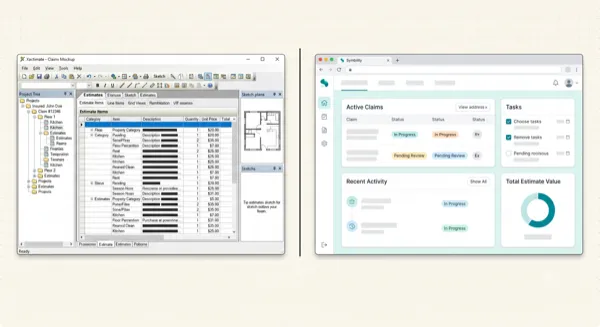
The output is functional. It looks like an Xactimate report because that's exactly what it is. Black and white. Dense. Tables of codes and numbers. Not exactly something a homeowner finds inviting, but it contains everything.
Xactimate Online
Log in, open the estimate, go to Reports, pick your report type, and hit Export to PDF. The browser downloads the file. Same output, just generated on the web version.
The online version is actually a little faster since you don't have to deal with print drivers. But the report formatting is identical.
The Problems Nobody Tells You About
Exporting works. But I've hit enough issues over the years that I want to flag them.
The PDF is huge. On big commercial estimates with 300+ line items, the PDF can run 40-50 pages. Email attachment limits become a real thing. I've had emails bounce because the PDF was 28MB. Now I always check the file size before sending. If it's over 10MB, I use a file sharing link instead.
Sketches may or may not export. Depending on your report settings, the floor plan sketch might not be included in the PDF. Or it shows up as a tiny thumbnail that's unreadable. Check your report template settings under Tools > Report Options and make sure the sketch pages are included at a readable size.
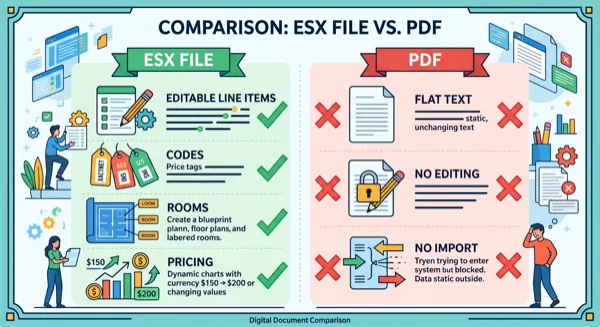
No going back. Once it's a PDF, it's flat. The person receiving it can't edit the line items, can't adjust quantities, can't import it back into Xactimate without a conversion tool. This is by design — Verisk wants the ESX to be the editable version and the PDF to be the read-only printout.
Which brings me to the real headache.
The Reverse Problem: Getting a PDF Back Into Xactimate
Here's the scenario I deal with at least three times a week. Someone sends me a PDF of an estimate. Maybe it's the carrier's initial scope. Maybe it's another PA's work. Maybe it's a contractor's bid. And I need that data inside MY Xactimate so I can supplement it, adjust it, or compare it against my own scope.
I can't import a PDF into Xactimate. That feature doesn't exist and probably never will.
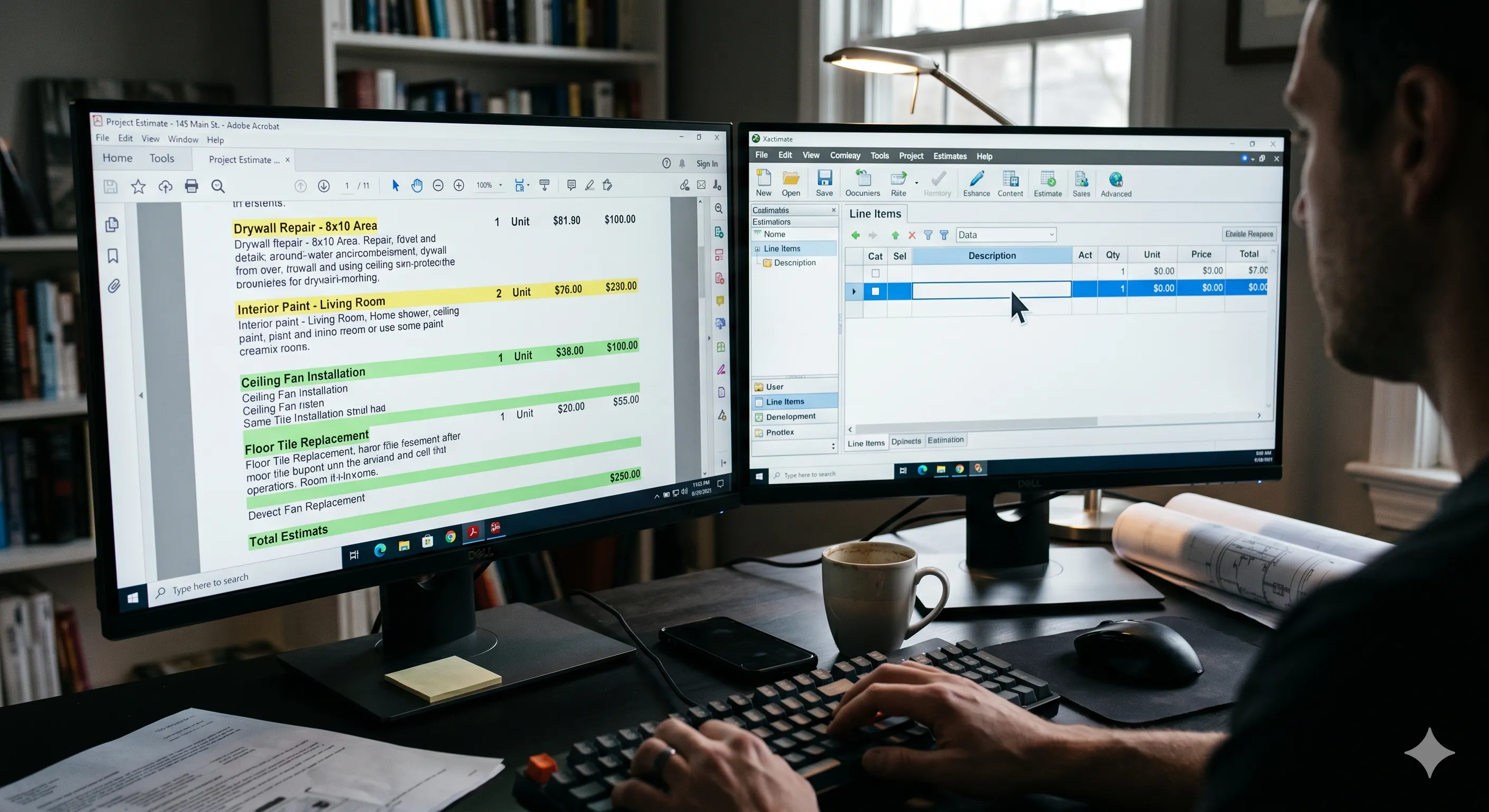
So for years, the answer was: open the PDF on one monitor, open Xactimate on the other, and re-type every single line item. On that 187-line estimate for Mrs. Delgado's kitchen fire? That's about two hours of mind-numbing data entry.
How I Actually Solve This Now
About eight months ago, I started using ProjectEstimatePro for the PDF-to-ESX direction. Upload the PDF, let it extract all the line items and codes, download an ESX, import into Xactimate. What used to take two hours takes about 15 minutes now, including my review pass.
The tool handles the hard part — reading the PDF structure, matching line items to the correct Xactimate category codes, organizing everything into rooms, pulling quantities and units. On clean Xactimate-generated PDFs, accuracy runs around 95%. I still review everything before I submit anything to a carrier, but the review is a 10-minute scan, not a 2-hour retype.
For the ESX-to-PDF direction, I still use Xactimate's built-in export. It works fine for that. But if I need to quickly share a readable version of an estimate and I don't want to mess with Xactimate's clunky report builder, I sometimes just let the tool handle both directions. Upload the estimate data, get a clean output in whatever format I need.
The combination of having both directions covered — ESX to PDF for sharing, PDF to ESX for importing — means I spend my time actually adjusting claims instead of fighting file formats. That's kind of the whole point.
Quick Checklist for Sharing Estimates
Before you hit send on that PDF:
- Preview the report. Check for truncated room names and wrapped line items.
- Include the sketch pages if the recipient needs to see the floor plan.
- Check file size. Compress or use a file sharing link if it's over 10MB.
- Name the file something useful. "Estimate_123MainSt_2026-06-14.pdf" not "export.pdf."
- If the recipient needs to EDIT the estimate, don't send a PDF. Send the ESX, or better yet, route it through XactAnalysis.
The Bottom Line
Exporting an ESX to PDF is straightforward. Xactimate's built-in report export gets the job done. The real pain point isn't going from ESX to PDF — it's getting back the other way. And that's where a conversion tool pays for itself ten times over.
Every adjuster, PA, and contractor deals with both directions. You export to PDF to share with the world. You receive PDFs that need to come back into Xactimate. Having a workflow that handles both means you stop wasting hours on file format gymnastics and start spending that time on actual claims work.
Mrs. Delgado got her PDF. She called me back and said, "Oh, this I can read." Simple as that.
Written by
Ray Gutierrez
Field Adjuster & Public Adjuster, 10 Years
Frequently Asked Questions
Open the estimate in Xactimate, go to Reports, select the report type (usually Estimate Report), click Print Preview, then Print to PDF using your system's PDF printer. On Xactimate Online, you can export directly to PDF from the Reports section.
No. ESX is Xactimate's proprietary format and can only be opened in Xactimate Desktop or Xactimate Online. If you need to share an estimate with someone who doesn't have Xactimate, export it to PDF first.
Not with Xactimate itself — it has no PDF import feature. But tools like ProjectEstimatePro can convert PDF estimates into ESX files. Upload the PDF, review the extracted line items, download the ESX, and import it into Xactimate. Takes about 15 minutes versus hours of manual re-entry.
The PDF is generated from Xactimate's report templates, which control formatting, page layout, and which sections are included. Check your report settings under Tools > Report Options. You can customize which pages appear, whether sketches are included, and how line items are grouped.
For estimates over 300 line items, the PDF can get very large. Check the file size before emailing. If it's over 10MB, use a cloud file sharing link instead of an email attachment. Also consider sending just the Summary Report if the recipient only needs totals, not every line item.
Convert Your PDF Estimates to Xactimate
Upload a PDF and get an editable ESX file in minutes. No manual data entry required.
Try Free ConversionPractical next steps